What is the lookback period inside commitment planner and when to use it?
Last updated: August 8, 2024
What is the lookback period inside commitment planner and when to use it?
For example, if your org had a recent spike in temporary usage or maybe a drop in usage over the weekend, the default commitment plans would be skewed by that recent spike or drop in usage.
As outlined below, inside of Archera's commitment planner, you can set the lookback to a longer timeframe to get a recommendation that's more robust to the recent temporary fluctuation.
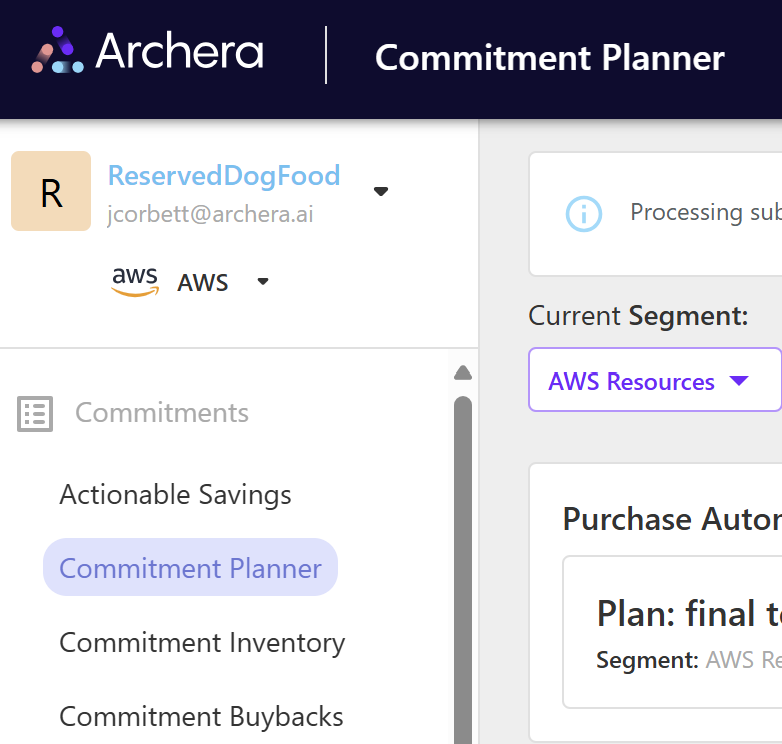
Simply navigate to Commitment Planner on the lefthand navigation pane.
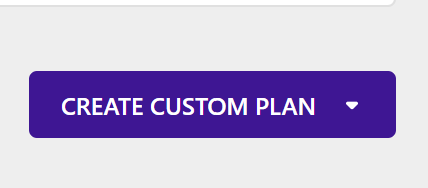
Next, find the purple "Create Custom Plan" button on the right-hand side of the page
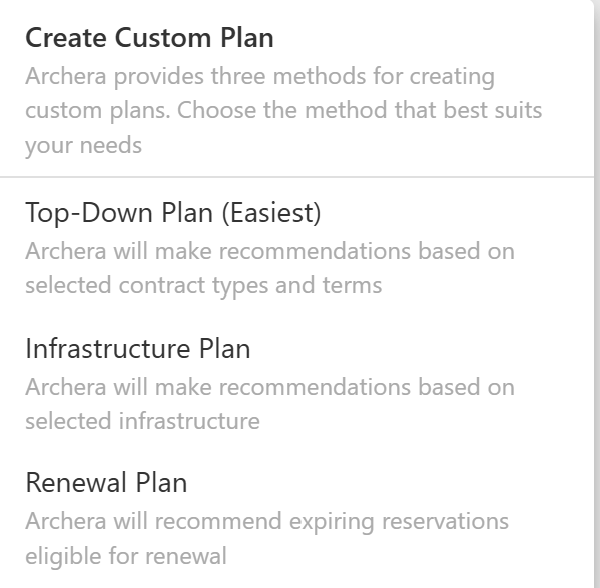
Next, on the menu that appears, Select the "Top Down" plan, as shown below
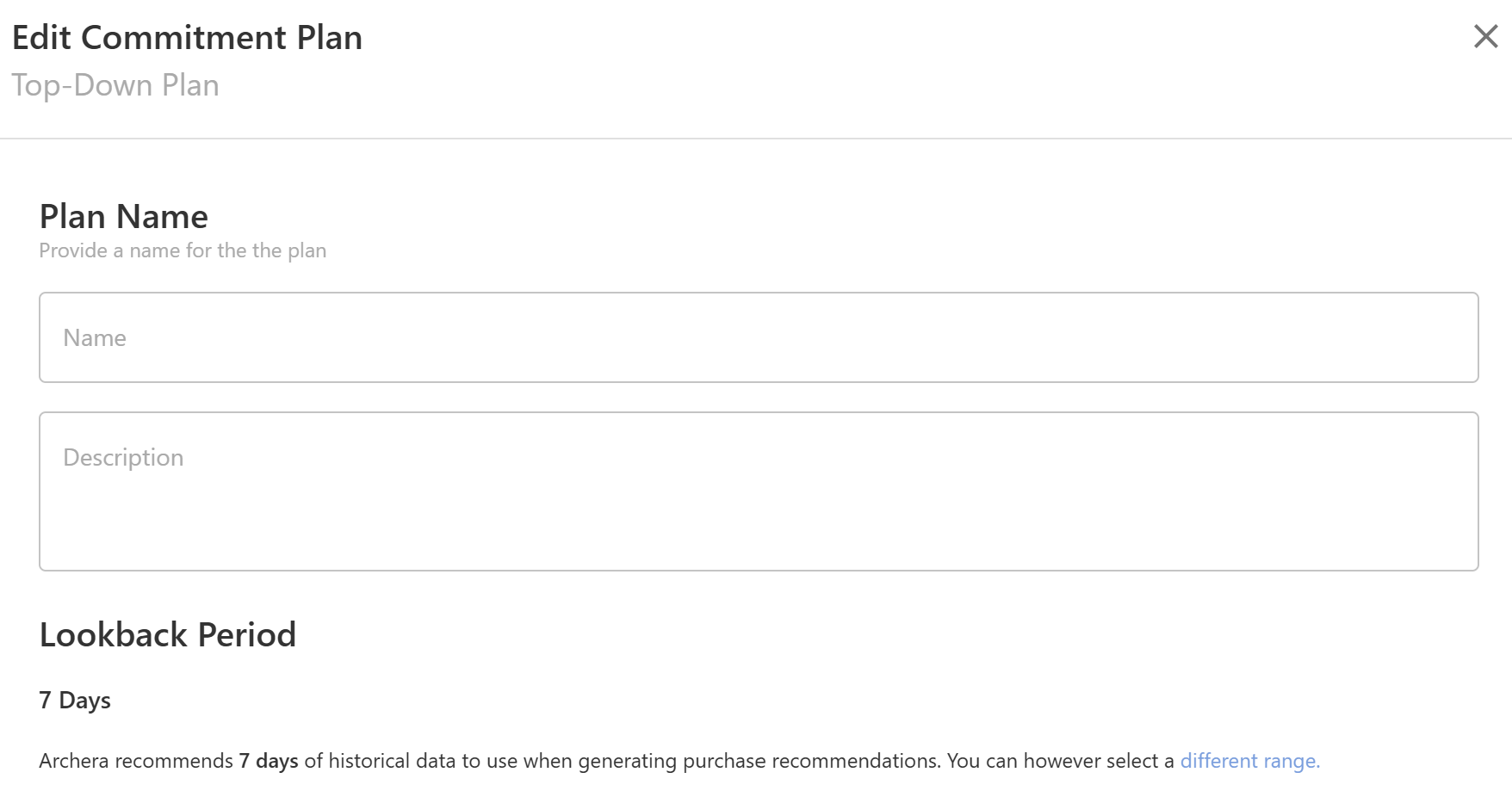
By default, the commitment planner has a lookback period of 7 days - in order to lengthen that period, click on "different range" as shown below on the bottom right.
Use the slider provided to determine the exact date range you would prefer for the lookback period.
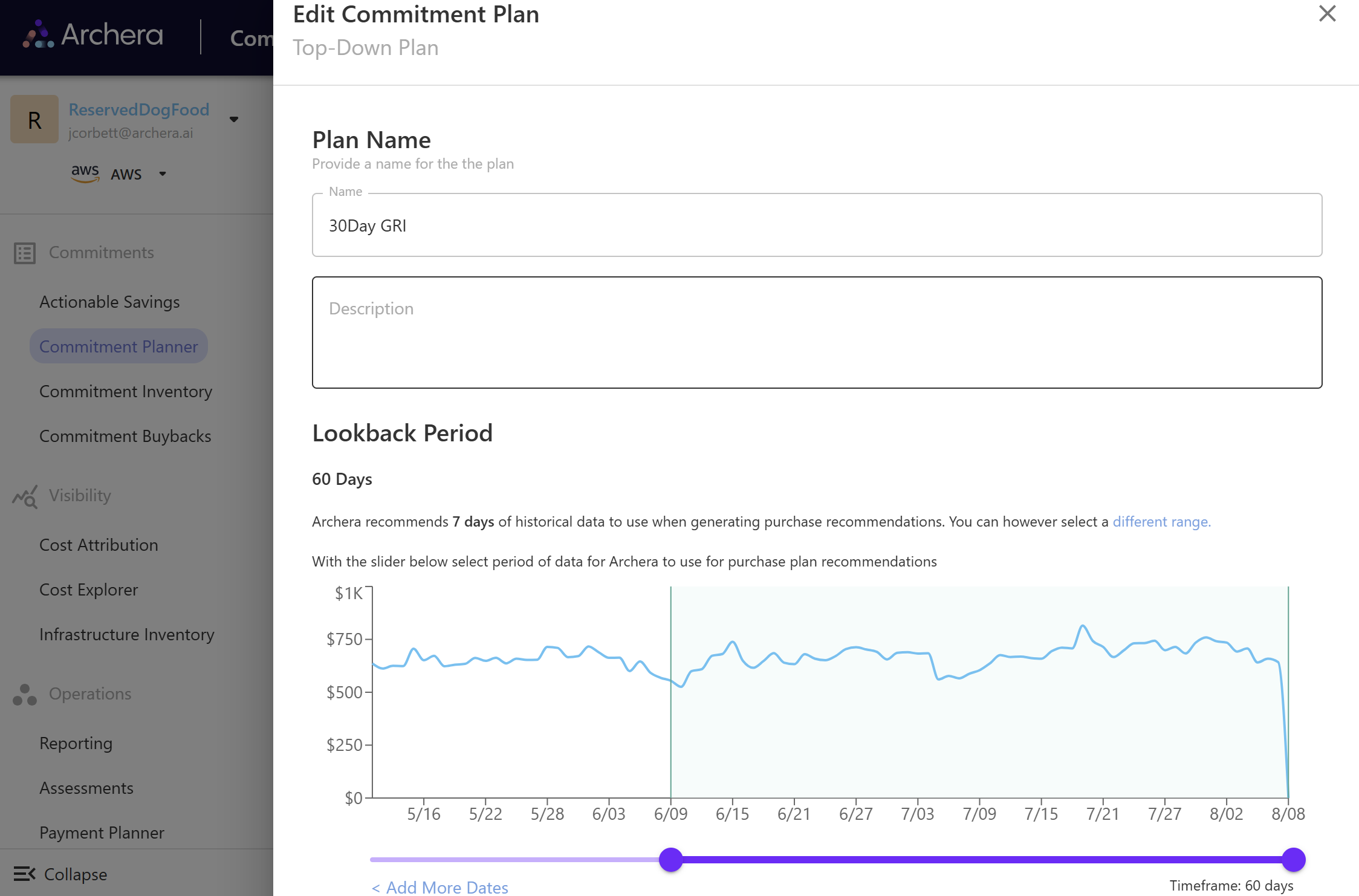
Our example above shows 60 days
Finally, proceed with configuring the rest of your desired options in the commitment plan and click on "Submit"
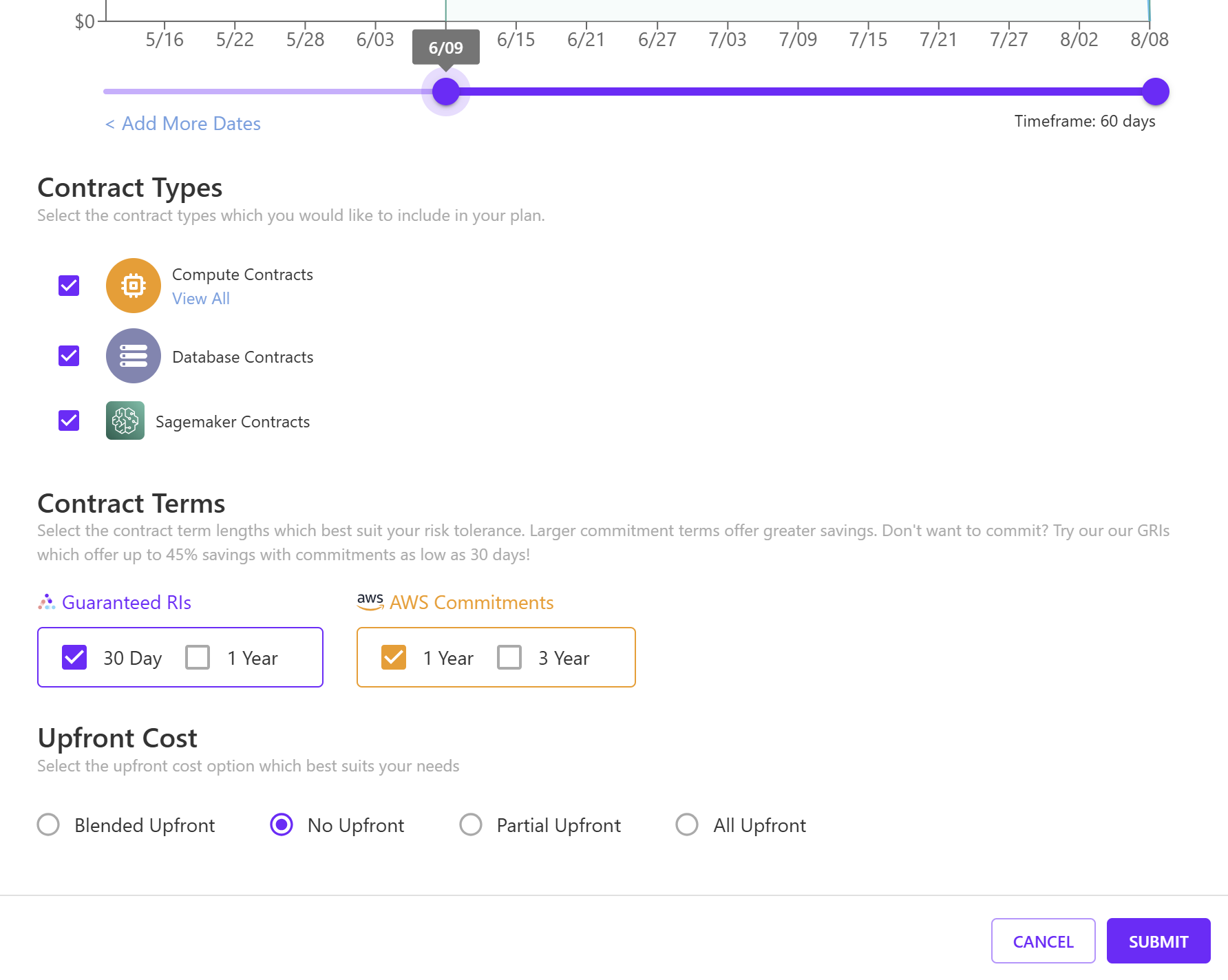
Wait for the plan to calculate!
Setting a longer lookback period allows Archera to acquire a better usage baseline to cover with the recommended commitments.