How to Create a Custom Purchase or Renewal Plan in Archera
Last updated: October 6, 2025
Creating a custom plan in Archera is your way of tailoring savings to fit your organization’s exact infrastructure footprint — like a bespoke suit, but for your cloud commitments. Whether you’re building a Purchase Plan or a Renewal Plan, the process is nearly identical. For simplicity, we’ll focus on Purchase Plans here (same principles apply to Renewal).
By default, Archera automatically generates three plan options for each segment — Recommended, Balanced, and High Savings.
That said, there are plenty of scenarios where creating a Custom Plan makes more sense. For example, you might want to:
Include or exclude specific savings vehicles
Specify a particular lookback period
Adjust or test different term lengths
Or explore a unique configuration tailored to your team’s goals
In short — when the auto-generated plans don’t tell the full story, Custom Plans let you take the driver’s seat.
To create a Custom Plan, you may either click the "Custom Plan" button or modify one of the existing default plans from the Commitment Planner section (You can also create a Renewal Plan from the "Commitment Inventory page):
Here is the view from the Commitment Planner Page:
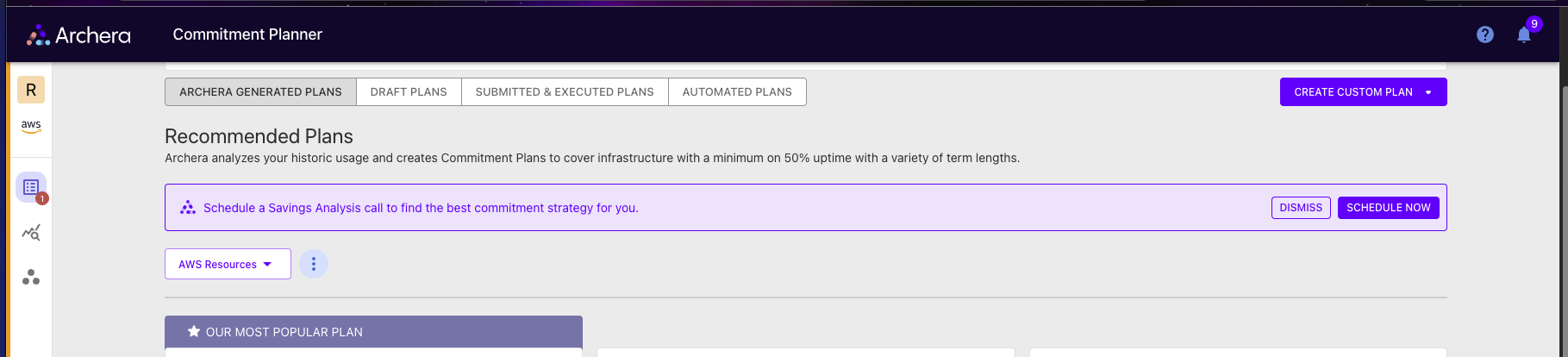
Here is what the button looks like from the Commitment Inventory Page:

Once you select Create a custom Plan you will see 3 options which will be explained further below"
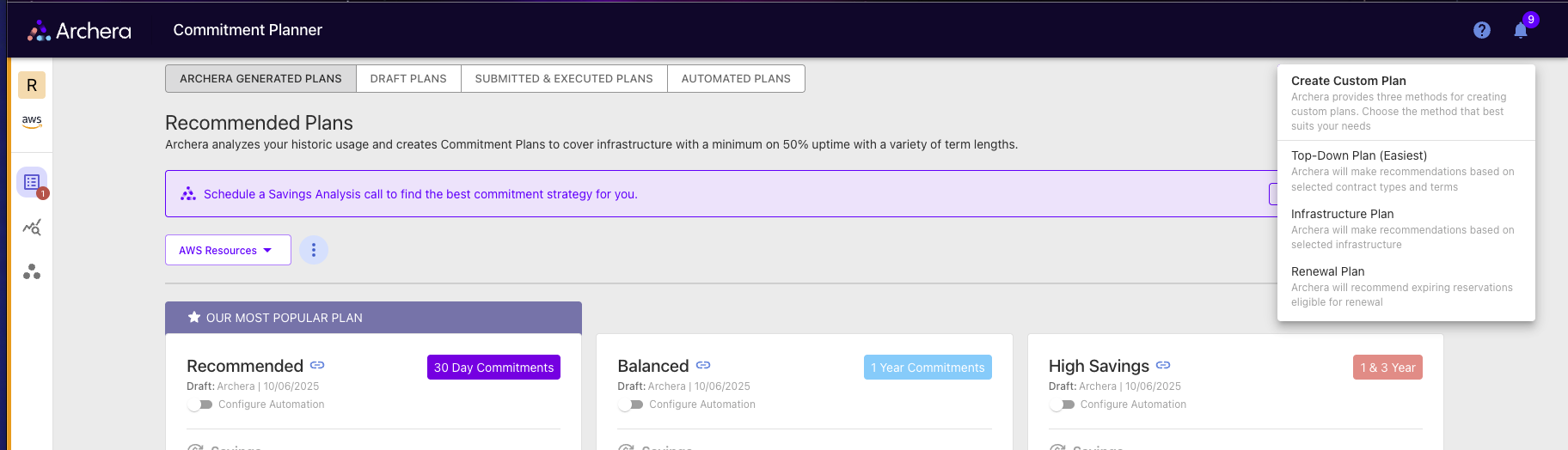
🪄 Step 1: Choose Your Custom Plan Type
You’ll see three options in the dropdown. Which you choose depends on your goal:
Top-Down Plan – Want to cover everything across your infra?
This one pulls usage directly from your CUR data and gives a holistic, org-wide view. It’s your “go big” option.Infrastructure Plan – Want to zoom in on specific workloads?
Maybe you spun up some new RDS instances, or you want to exclude AWS Lambda because of your dev/test churn.
Use the search bar to filter by instance type, tags, or resource name, then select what you want to include (and leave the rest unchecked).
This approach gives you total control — mix and match commitments across resources for a custom-fit view.Renewal Plan – Access this from either the Commitment Planner or Commitment Inventory page.
This plan is perfect for tracking and renewing upcoming expiring commitments — ensuring no gaps in coverage and zero missed savings opportunities.
🧭 Step 2: Naming Your Masterpiece
Start by giving your plan a name. Be descriptive!
Think: who created it, what it’s for, and when you created it.
Example:
RDF 30 Day GRI (RDS Only)
There are no strict naming rules — just make sure future-you (and your teammates) can tell what it’s for at a glance.
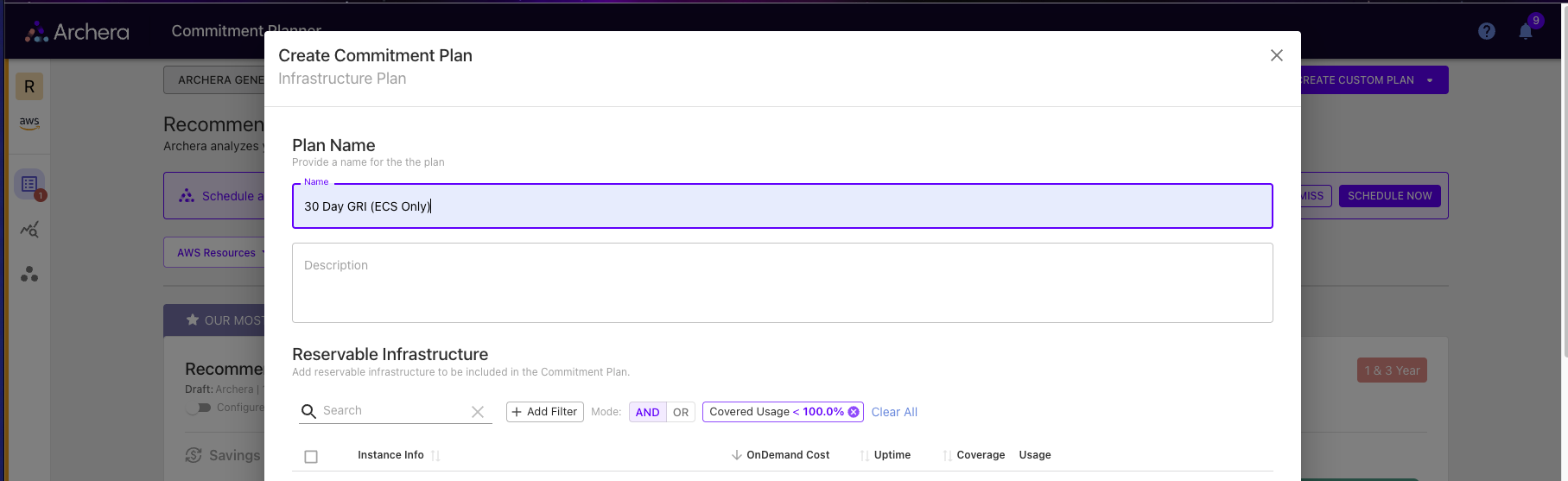
📝 Step 3: Name It (Officially)
Once you’ve chosen your plan type, give it a final name you’ll recognize easily — something like:
Renewal 30 Day GRI (RDS Only)
1 Year GRI (Compute)
Mix and match terms, instance types, or tags. Make it yours.
🔍 Step 4: Select Reservable Infrastructure
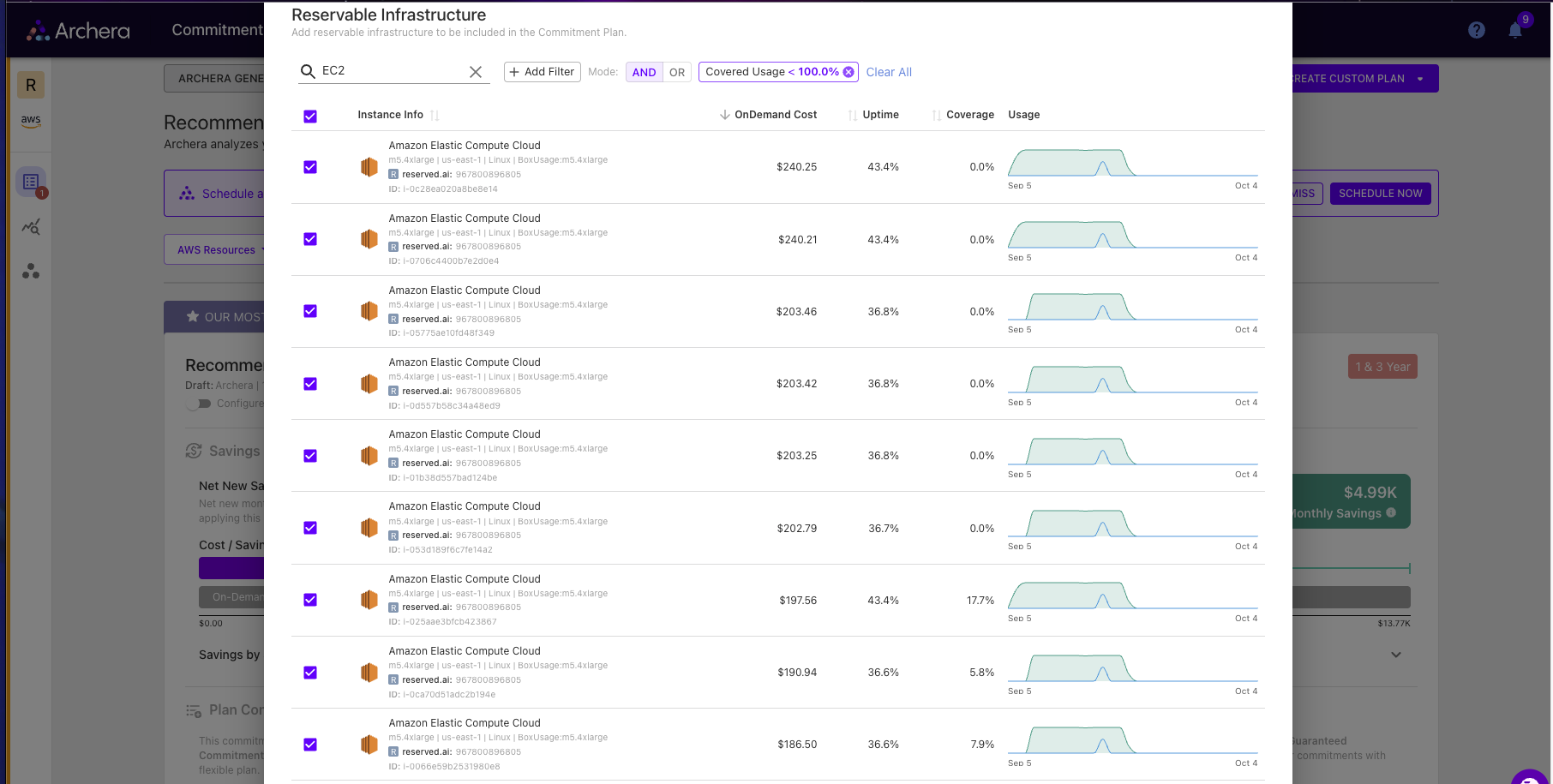
Head to the Reservable Infrastructure section.
Use the search bar to find and select the commitments you want included — by name, instance type, or tags. Anything you leave unchecked will be excluded.
This step lets you sculpt your plan so only the right infrastructure is covered by your GRIs.
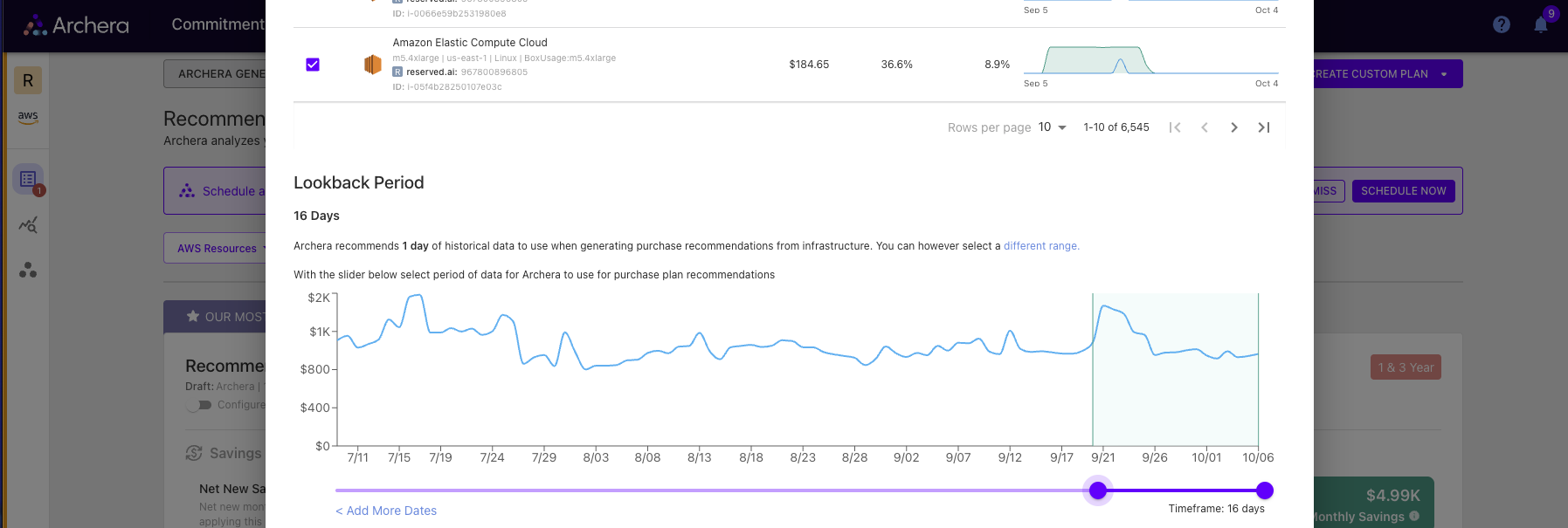
⏳ Step 5: Adjust the Lookback Period
The system default is 1 day, but that’s just a starting point.
Click “Different Range” to slide the lookback window to something that better fits your usage patterns (like 7, 14, or 30 days).
⚙ Step 6: Choose Contract Types
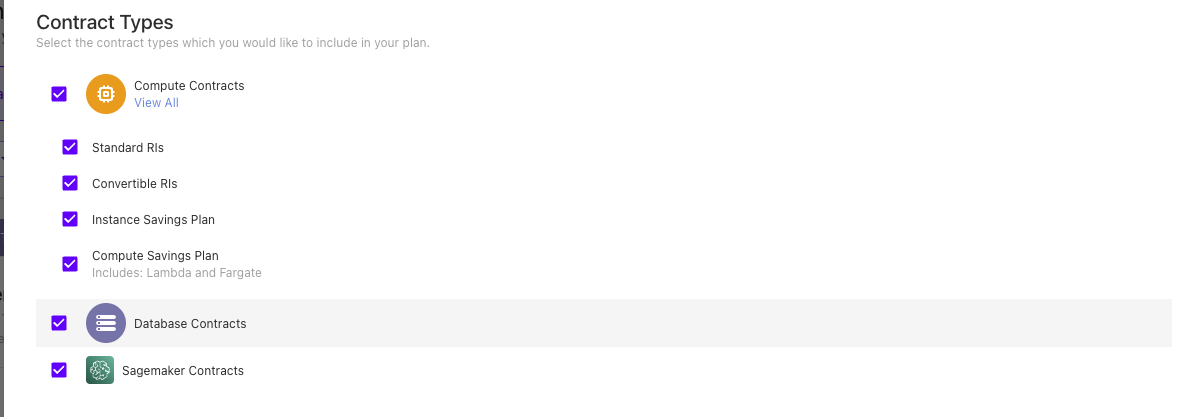
By default, all contract types are selected — so you’ll see savings potential across every type.
But if you want to narrow your scope (say, Standard RIs, Compute Savings Plans, Sagemaker Contracts only), go ahead and deselect the rest.
📆 Step 7: Choose Contract Terms
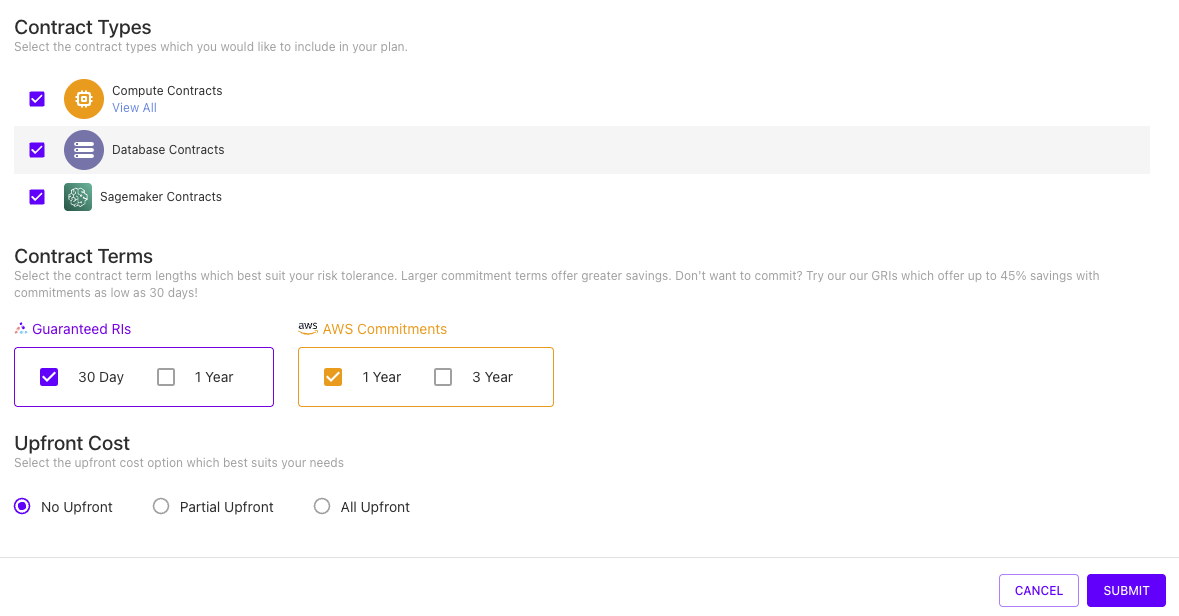
If you want to view GRIs only, select 30-day or 1-year terms and deselect AWS Commitments.
If you’d like to compare both Archera GRIs and AWS Commitments, you can include:
30-day or 1-year GRIs
1-year or 3-year AWS Reserved Instances
Keep in mind: Archera GRIs are way more flexible — shorter terms, easier modifications, and no lock-in drama.

💸 Step 8: Select Upfront Costs
Choose your preferred upfront structure:
No Upfront
Partial Upfront
All Upfront
Remember: Archera’s Recommended and Balanced Plans default to No Upfront — which means you get savings without tying up capital.

📈 How to Optimize for Upfront Spend
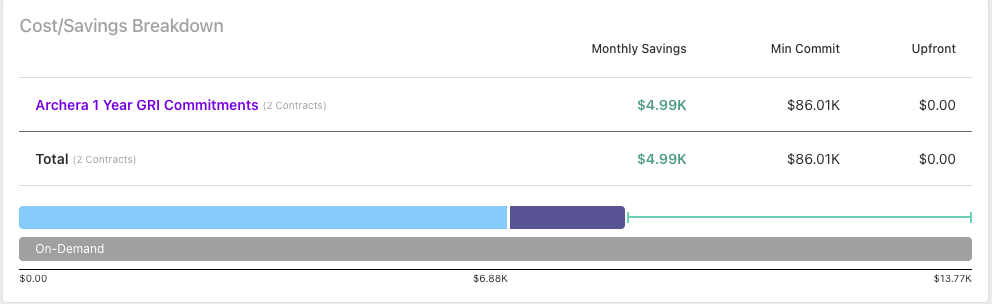
Archera visualizes this on a Pareto Frontier (fancy term, simple concept).
We’ll automatically find that “sweet spot” — the point where adding more spend doesn’t meaningfully increase savings.
You can also override this and pick a flat upfront option if you’d rather go manual.
This is an example of what this scale and might look broken down:
🧮 Step 9: Review and Apply
Click the purple Submit button.
This does not trigger a purchase — it simply creates and saves your plan in the Draft Plans section of the Commitment Planner.
Once savings calculations complete, review:
Covered services
Savings projections
Contract details
When you’re ready, click “Apply Plan” from either the Draft Plans tab or within the plan itself.
💡 Bonus Tip: Fine-Tuning Your Plan
Want to see exactly what’s covered and how?
Click “View Details” to explore per-line-item breakdowns — contract terms, cost type, and coverage by resource.
Thanks for reading and please reach us at solutions@archera.ai if you have any further questions!