Infrastructure History - Overview
Last updated: September 25, 2025
Infrastructure History
No Infrastructure Left behind! The Infrastructure History Page acts as a diving off point to see EC2s, Lambda Functions, RDS, Fargate, and other individual resources. Here you can see Resource Details such as Operating Service and other details provided by the Cloud Provider specifically for this service. You also can see Tags as well as a larger chart to view uptime. Primarily the Infrastructure History page uses your Segment selected as the initial selector. Additional search options such as Untagged Resources are Available to help further refine the search to help gather resources up.
Infrastructure History - Infrastructure List and Details
Here you can see Usage metrics, Cost, Savings, and also see how Commitments are being applied to the infrastructure. If you have created a segment its also a quick way to verify the infrastructure is mapper properly as all the relevant information (accountId, tags, etc.) used in segment creation is available here.
If you have just launched some new Infrastructure we recommend checking it out in the Infrastructure History page for coverage a few days after launch as it takes some time for coverage to be applied. AWS and other Cloud Providers will randomly assign commitment coverage to assets. Here you can see the coverage
Hovering over provides more information about the Instance
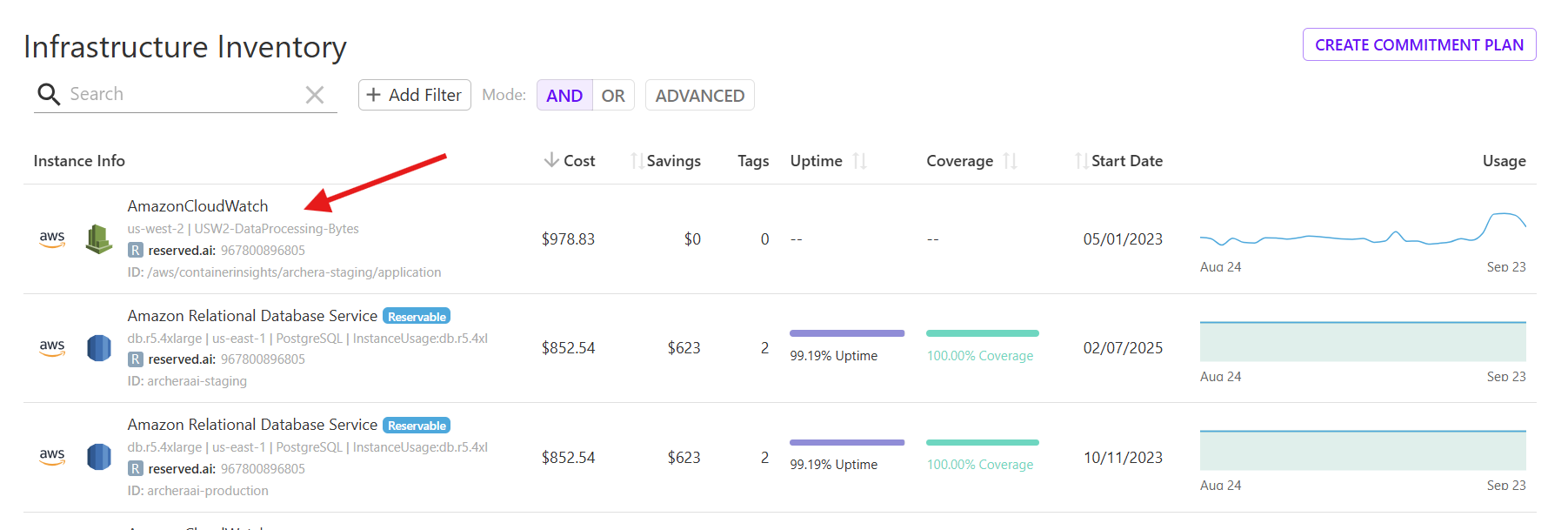
Hovering over provides more information about Coverage, Uptime, and Utilization if available
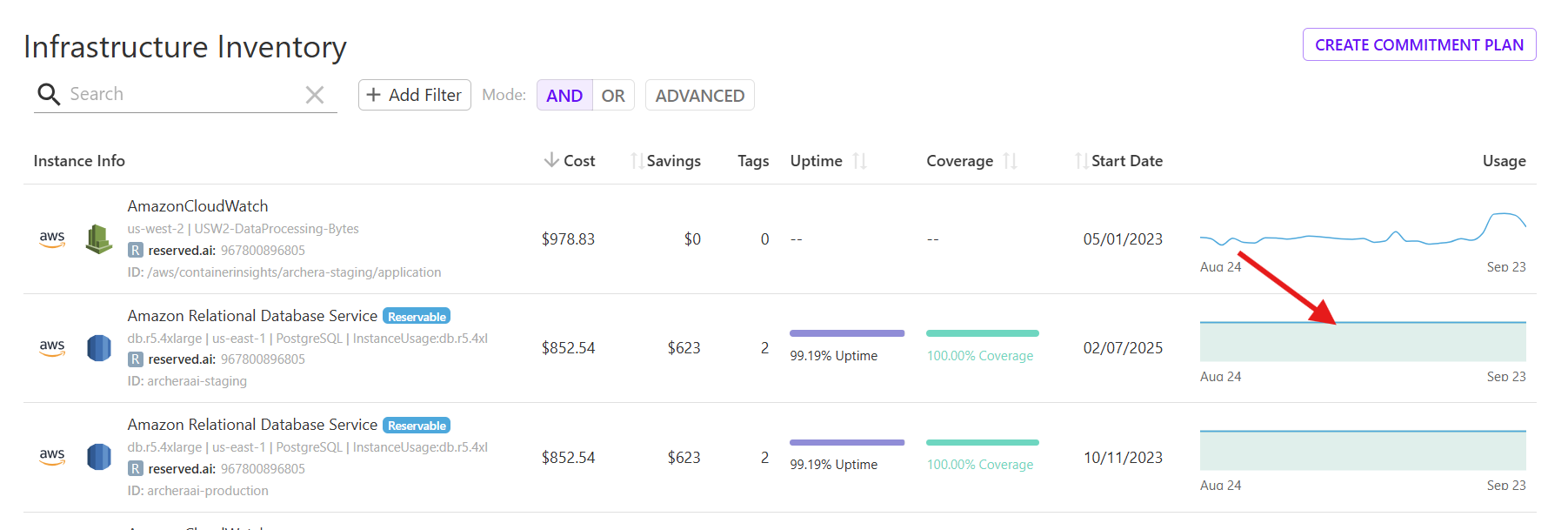
Search on a number of fields such as Region, name, Operating system

Searching and Filters
To get more granular you can select core Filters such as Resource Type, Region, Service to drill down on specifically. The mode option of AND OR, ether combines the Filters in an AND operator or allows you to Search for Alternatives with an OR. Remember this page is initially filtered by Segment at the top so this is simply to act as a last mile search.
Search Untagged to add the untagged filter.
Available fields will show up as optional filters, they vary between cloud provider but we provide Region, AccountId, Resource Type, and Service across all.
Adding a Recommendation
If you want to add a Custom Recommendation simply select the Infrastructure that you want and the Add Recommendation button will become available at the top.
Add Recommendation
Clicking Add Recommendation with selected infrastructure resources will automatically link the infrastructure. Here you can see the selected resource is refreenced under the Infrastructure section in Custom Recommendation. Also, the related Segment is already pre-selected so the recommendation will go to the relative team. We recommend making recommendations on a teams Primary Segment as that is used in reporting for Groups.