How do I remove or add a user to my Archera account?
Last updated: January 31, 2026
How to add a new user or remove an unwanted user from your Archera account, including your 3rd party vendors or 1st party support teams.
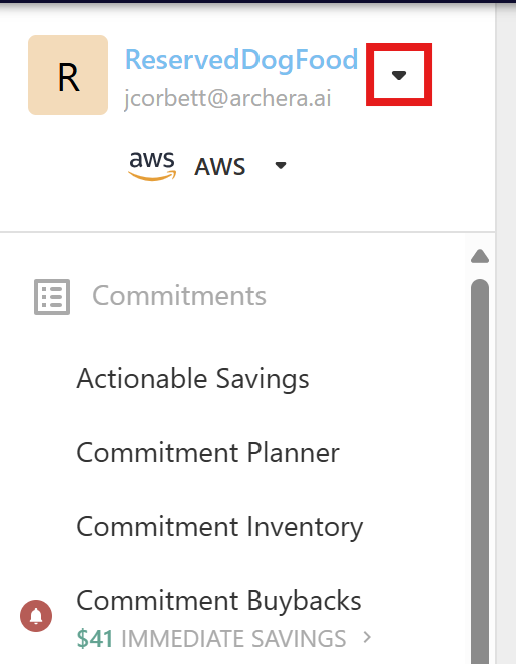
To remove or invite new users to your Archera account navigate to the arrow in the top left next to your org name.
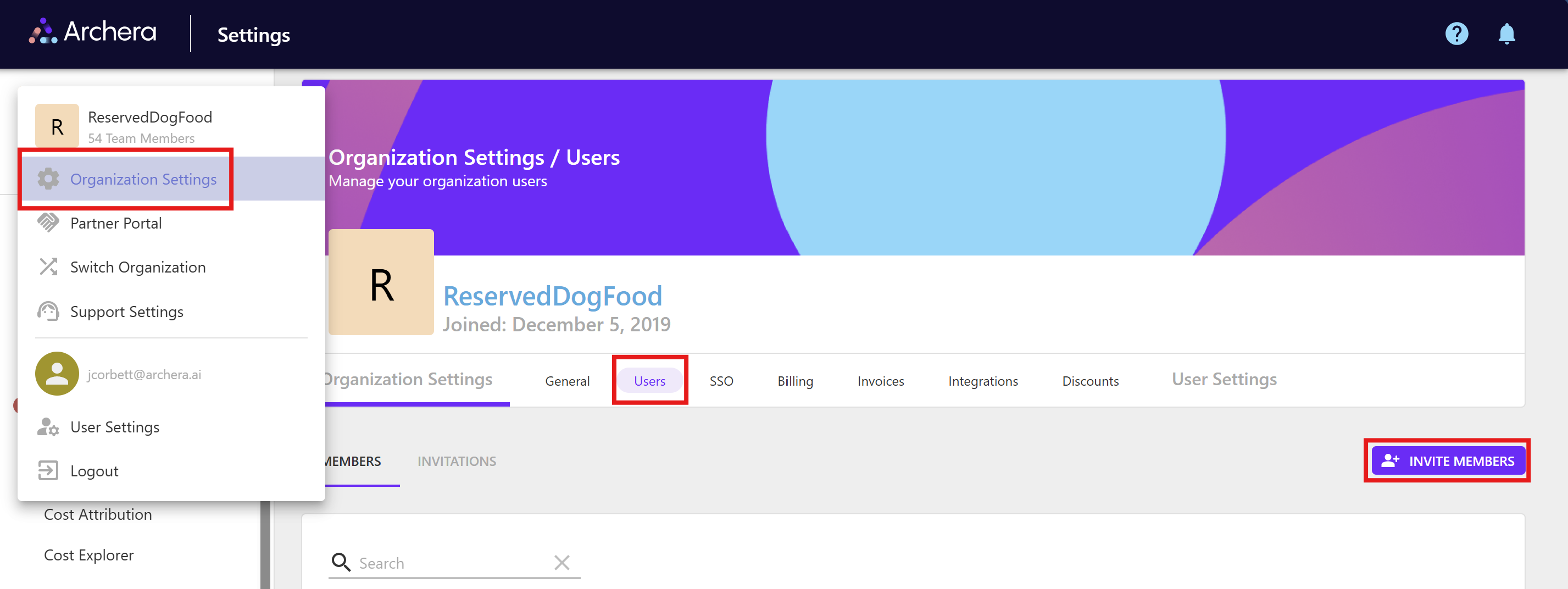
Then click on "Organization Settings" page followed by clicking on the "Users" section on the top.
To add users, click the "Invite Members" button at the top of the page to invite a new user via their email & with a specific role.
See reference screenshots below
Then to manage or remove specific users, you can click the remove button to revoke access or change the user's role in the table as shown below.
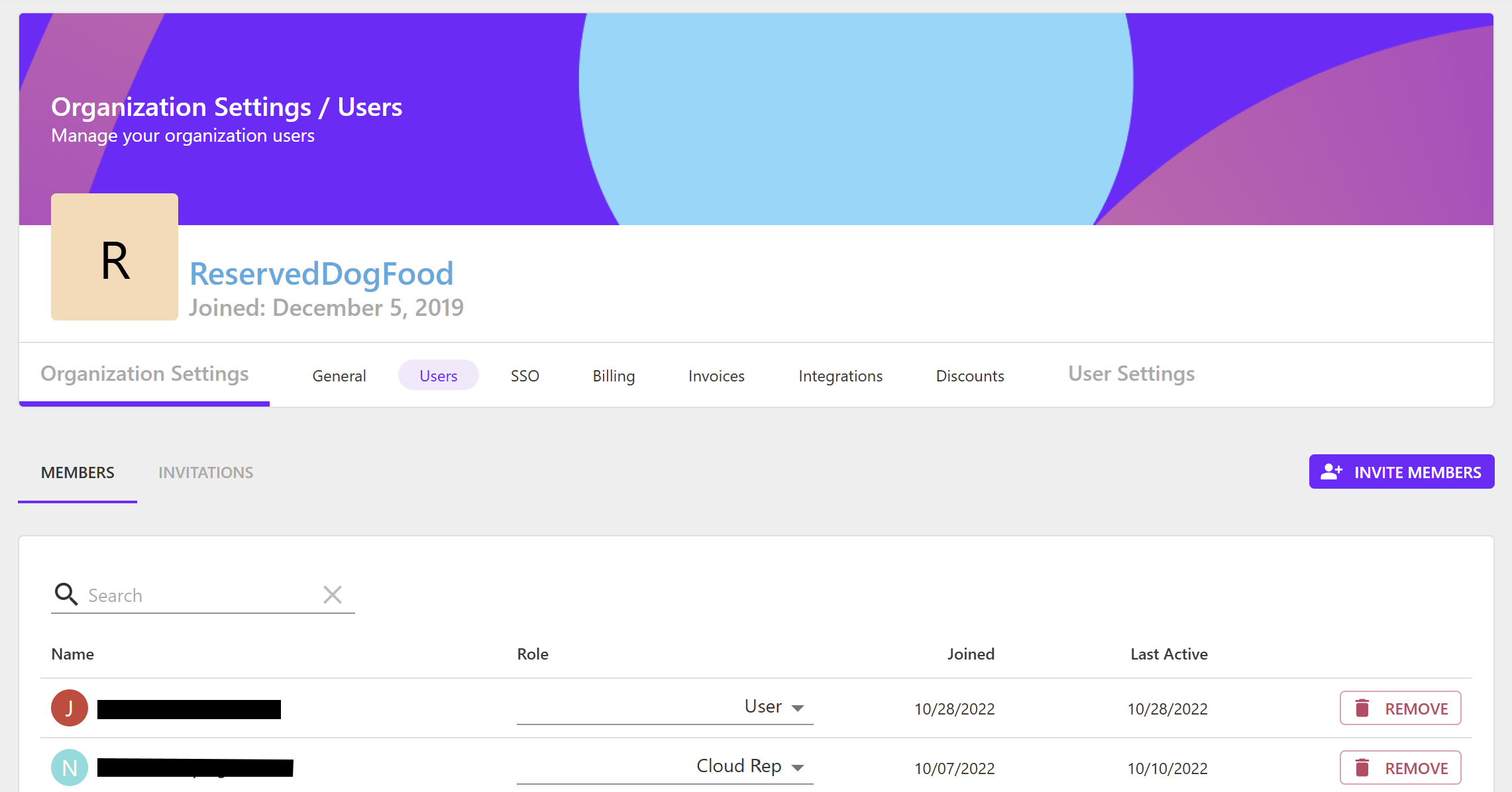
If you would like to opt-out of giving your cloud account representatives or MSP/Reseller/Cloud-Consultants access to your environment, you can restrict their role or remove them from your account entirely via this page as well.